
Useful guide / cables + adapters
USB-C cables explained: match the plug, power and data
USB-C describes the connector. Learn the five checks that reveal whether a cable suits the charging, data or display job you need.
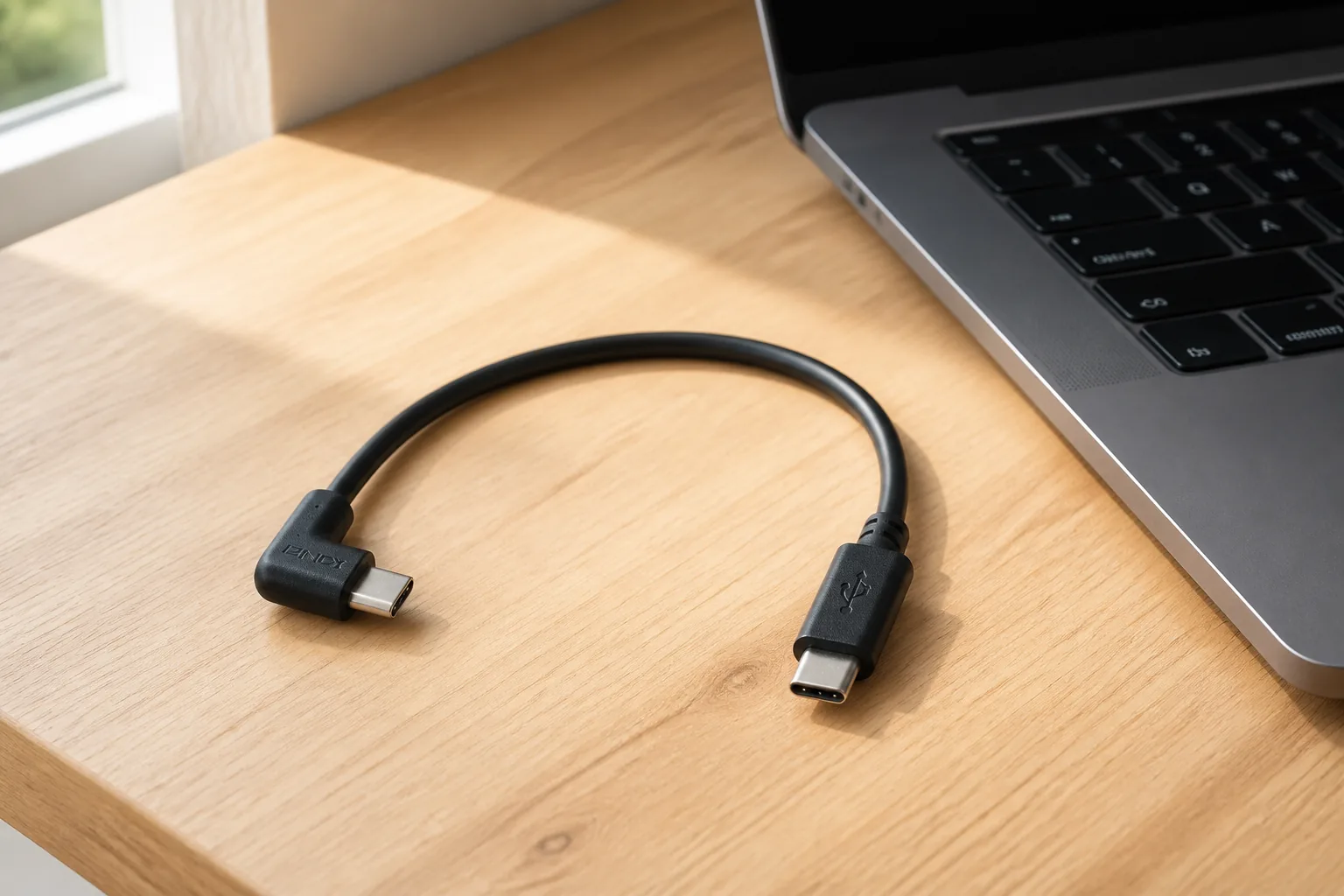
USB-C describes a connector. It does not, by itself, tell you every charging, data or display capability of a cable.
Two cables can have the same USB-C-shaped plug while supporting different jobs. The practical buying rule is: match the connectors first, then check the required power and data capability for the exact devices.
1. Identify both ends
Look at the port on each device and write down the connection needed at both ends.
- USB-A is the familiar rectangular connector used on many chargers, computers and hubs.
- USB-C is the smaller reversible connector used across many newer phones, tablets, computers and accessories.
- USB-B and Micro-USB still appear on printers, older accessories and other equipment.
- HDMI and 3.5 mm audio are different connection families. An adaptor may be required, and compatibility must be checked rather than assumed.
A USB-A-to-USB-C cable and a USB-C-to-USB-C cable are not interchangeable at the charger end. A right-angle plug may help in a confined installation, but its direction and clearance still need to suit the device.
2. Check the charging requirement
The connector shape is not a complete power specification. The device, charger and cable work together, and the lowest supported capability can limit the result.
- Check the power requirement stated by the device manufacturer.
- Check the charger output and supported charging method.
- Check the cable's stated power capability.
- Confirm whether the product is intended for charging, data or both.
USB-IF guidance uses power markings such as 60W and 240W for relevant certified cable categories. Do not assume an unmarked or unverified cable supports either value.
3. Check the data job
Charging support does not automatically prove that a cable is suitable for every data task. If you need to move files, connect storage or use another data accessory, check the exact supported data rate on the cable and both devices.
Do not infer performance from the connector alone. Read the cable's stated data specification.
4. Do not assume display support
A USB-C port or cable does not automatically guarantee that a monitor connection will work. Video support depends on the source device, port, adaptor or dock, cable and display. Check the exact device documentation before buying a USB-C video adaptor or cable.
5. Match length and installation
Choose enough length to reach without pulling on a port. For a desk, vehicle or wall installation, also check plug direction, clearance, strain near the device and whether the connection will be repeatedly moved.
Five checks before you buy
- Connector at end one: USB-A, USB-C or another format?
- Connector at end two: does it physically match the destination device?
- Charging requirement: what does the exact device require, and what does the exact cable state?
- Data requirement: is the cable specified for the transfer job you need?
- Installation: is the length, plug direction and clearance suitable?
Common mistakes
- assuming every USB-C cable has the same charging capability;
- assuming a charging cable supports the required data rate;
- assuming USB-C automatically means display output;
- checking only one end of the cable;
- buying a right-angle connector without checking its direction;
- choosing by appearance when the required capability is not stated.
Ready to compare?
Match the cable to the job.
Check the exact product specifications, availability and delivery before you buy.
Browse device cables + adaptersFrequently asked questions
Do all USB-C cables charge at the same speed?
No. Charging depends on the device, charger and cable, and the lowest supported capability can limit the result.
Does every USB-C cable transfer data?
Do not assume the connector shape proves the required data capability. Check whether the exact cable supports data and the rate needed for your task.
Can any USB-C cable connect a laptop to a monitor?
No. Display support depends on the source device and port, the cable or adaptor and the display.
Is USB-A to USB-C the same as USB-C to USB-C?
No. The charger or host-side connector is different, and supported charging or data behaviour may also differ.
What should I check on a right-angle cable?
Check which direction the plug faces, the space around the port, cable strain and the stated charging and data capability.
Sources
- USB-IF: Cables and connectors
- USB-IF: USB Type-C cable and connector specification
- USB-IF: Compliance guidance
Product-specific claims must come from the exact cable manufacturer record.